
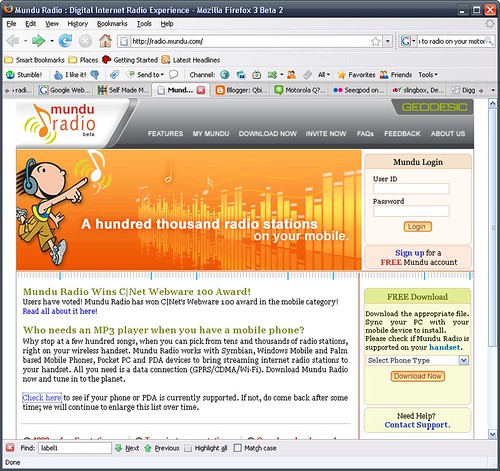
This is a nice little application that will enable you to listen to Thousands of radio stations on your Q. The service is free as is the application.
Simply go to the site here and create an account, download the CAB file (installation) and install.
You can create personal playlists and since this uses your internet connection, you should have a unlimited internet plan before using this. 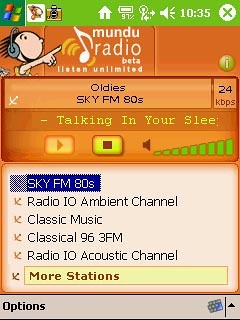
Showing posts with label Software. Show all posts
Showing posts with label Software. Show all posts
Monday, January 14, 2008
How to listen to Radio on your Motorola Q - Mundu Radio


Thursday, January 10, 2008
How To Change the Homepage on Internet Explorer of your Motorola Q

This will require editing the registry.
Run Your Registry Editor.
Run a backup if your editor has it.
Navigate through the following sections (keys)
HKEY_Local_Machine
Software
Microsoft
Internet Explorer
AboutURLs
Press the "Values" button and edit the 3 values that have the word "Home" in them from whatever web address they have in them to http://www.google.com (if google is your chosen homepage as an example).
Press Done when complete.
Wednesday, January 9, 2008
Yahoo Go! - Yahoo Mail, Flickr and more on your Motorola Q

For those of you that have yahoo as the center of your internet universe, Yahoo Go is a very nice little mobile application.
The application offers all Yahoo brand services such as Mail, Flickr, Search, Maps, Weather and various news feeds. My main mailbox is yahoo mail so this was the reason I added this app as it offers the near full Yahoo mail experience with ability to get to all your mail folders and contacts. There is also a synching feature to synch your yahoo contacts to your phone contacts.
Outside of this, I am not much of a Flickr user (not requiring mobile access at least) but the interface is slick. Yahoo weather is about the only other feature I could see myself using but that is a "once in a blue moon" feature.
I get my news from elsewhere.
Nevertheless, If you are a Yahoo mail user, this is a superior mail interface for your yahoo account than the windows mobile standard one you get with the phone - so it is worth it for that.
Version 3.0 is just out so I will add a new review or update this one soon.
Avot MV - Watch Youtube on your Motorola Q
Avot MV is an online video (youtube etc.) viewing application.
It has, at the time of writing this, indexed over 5 million online videos and are available for search on the applications homepage.
The application also has sub directories, aka channels for more specific browsing and searching.
For the most part, I was impressed with the application but have run into a few stalls requiring reboot (power off/power on) of the phone.
For me, browsing online video does provide lots of low attention span entertainment, Avot MV is a good solution for your short video fix needs.
Google Maps - Maps and Directions with GPS on your Motorola Q

This is one of the applications I use the most outside of my internet browser on my Q.
Google maps is, as you would expect, a mapping and directions application. It can be downloaded here.
It has the features of the main Google maps site, so if you are familiar with that you know what to expect.
One of the nice features of this application is the My Location feature. My Q has GPS but even if you don't, the application by use of triangulation, can get your location by pressing the "0" key.
This means that while you are driving to your designated location, you can see an updated view of where you are as you follow, or fail to follow as the case may be, the given directions.
This is an extremely useful and well built application and I cannot recommend it enough. It just works.
How to Increase the Headset Volume on your Motorola Q
When I was attempting to set up my Q as an MP3 player, I ran into the problem of the headset volume being just too low.
After searching, I found the way to handle this by means of a registry hack.
Navigate through the path as follows:
HKEY_LOCAL_MACHINE
Software
Motorola
BPCTRLR
WaveDev
BaseGains
Press the values button on the bottom left of the screen and locate StereoHdstPathGain Value, select it and raise value to 10 or higher (10 seems acceptable). Press Done when complete.
How to Edit the Registry of your Motorola Q
For the purpose of making Hacks to your Q, editing the registry will be a necessary task.
A hack is a tweak of a technical system to alter the manner in which it operates usually outside of manufacturers settings.
The registry is the part of the operating system where values and settings are recorded for an application to refer to for various actions. Example: If an audio application had the volume set to 4 and it was designed to "remember" the volume set, it might record that in the registry so when the application needed to find the last recorded volume for that application, it could find it there in a specified location.
The first thing needed will be an application to edit the registry.I chose PHM registry editor and installed it.
If you are new to editing a registry, take care to follow instructions from trusted sources exactly as incorrect editing can cause issues where reinstalls may be necessary depending on the application affected. Having said that, it is not very complicated as it resembles editing a setting in any application or webpage. On the Menu, you will find an option to backup the registry and I suggest you do this before making any edits.
To edit a setting, follow the path indicated to the specific setting and make the alteration. It is very similar to using a common file explorer.
Conduits Pocket Player - Make your Motorola Q into a Full Featured MP3 Player

Conduits offers full function media player called Pocket Player. It handles playing audio files including MP3, videos, podcasts and offers an onboard search and webguide.
For the purposes of this test and review, I am going to emphasize the MP3 player aspect of the application.
The browser screen (shown left) gives you a good idea of how this application is used and has a similar user interface to most MP3 players we know.
Browsing is fast and organized as you would hope.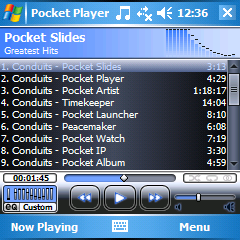 Once the player screen comes up based upon your selection, all is familiar and pretty obvious with the direction buttons handling most of the work. Up/Down handles volume and Left/Right handles moving through the songs. All these buttons can be remapped to customize the player fully to your needs.
Functionally, this application offers spectacularly more functionality with abilities to add plug-ins, alter appearance via skinning, full graphic equalizer and built in browser to search all manner of media including podcasts. The screenshot page will give you an excellent summary of the scope of this application.
Overall this is a stellar, professional application and fully deserving of the $19.95 price tag (at the time of writing this). There is a 30 Day demo so you can check it out for yourself.
CT Alarmclock - A Better Alarm Clock for your Motorola Q

One of my first critiques of my beloved Q was the lack of a user friendly alarm clock application. My search to resolve this brought me to CT Alarmclock from Connective Tools.
The screenshot shown gives you all you need to see as it brings up a screen with the ability to set one time with check-boxes for the days of the week you wish to have the alarm ring on. There is a disable button at the bottom right of the screen which is self explanatory.
It does have a snooze function and is easy to find an execute when needed..
Overall this app is an improvement over the standard alarm function for the phone but the inability to set multiple alarms to somewhat restricting and will not be considered "full functioning" but for most, this will do. It is free, so no complaint.
Opera Mini Browser - A Better Browser for your Motorola Q
 Opera mini is an alternative browser to the installed Internet Explorer (IE) browser standard on Windows Mobile.
The first thing you will need in order to install this browser is a java tool. I use Esmertec JBed which can be found here.
Install this and then go to the Opera mini website. Install as per normal procedure.
The first thing you will notice with this browser as compared to IE is the noticeable increase in speed of surfing and by pressing the back button, you notice an almost instantaneous return to the previous page.
Version 4 of Opera mini offers the ability to view your page in portrait or landscape mode with the pressing of 2 buttons.
 Opera offers an excellent online interactive demo here to show you exactly how the browser will run on your phone.
Images here taken from the Opera mini demo page.
Also of note is the handling of viewing images. The browser has a zoom function which allows you to see the image in full screen or in a closeup.
The browser does allow skinning so you can adjust the appearance.
Overall Opera mini wins on almost all categories over IE for me with the only exception of having to load the Java app as an extra button press to load it.
Subscribe to:
Posts (Atom)
