
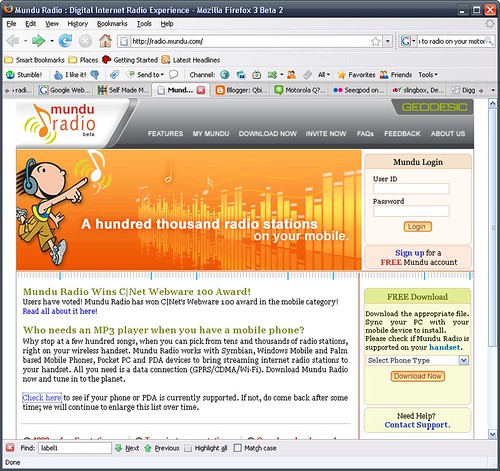
This is a nice little application that will enable you to listen to Thousands of radio stations on your Q. The service is free as is the application.
Simply go to the site here and create an account, download the CAB file (installation) and install.
You can create personal playlists and since this uses your internet connection, you should have a unlimited internet plan before using this. 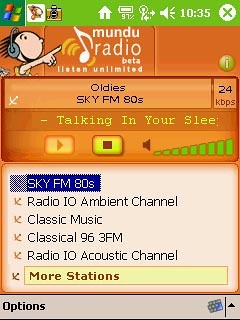
Showing posts with label How to. Show all posts
Showing posts with label How to. Show all posts
Monday, January 14, 2008
How to listen to Radio on your Motorola Q - Mundu Radio


Friday, January 11, 2008
How to send a Voicemail Message without actually calling anyone on your Motorola Q
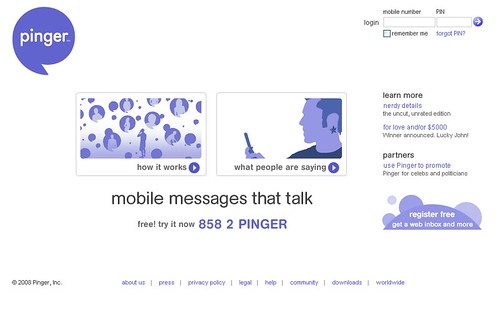 I found an interesting service that can save money and add a little more personality than texting and be faster than texting for the times you don't want to interrupt. The service is named Pinger and it enables you to record a voice message by caling a central number and then it sends it out to one or multiple contacts of your choosing.
They get a text that they follow and voila, hear your sweet voice instead of a cold text. The message can be as long as 5 minutes so more information can be included.
This service is nice if you want to leave a voicemail but dont want to talk or have a message for multiple people but it would take ages to type out. I could see this saving a few cellphone minutes too.
Oh its free!
How to Scan and Fax using your Motorola Q
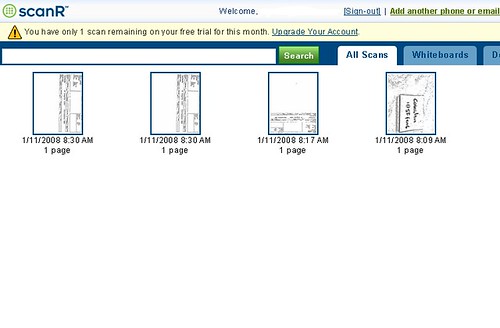 I am not going to review this service as I did not seem to have the ability to do a good in focus photo from my phone. There is a service called scanR and it is a simple service that does not require any installation but they do supply and application for those of you that might use it more regularly.
The premise is that, using your phones camera, you can photograph a document or business card at high resolution (and in focus) and from your phone, email it to their service. The service will apply image processing to tidy up the image and can save the document in pdf format.
The service also provides a faxing service.
Sign up is easy in that you give an email address and a chosen site password and send your first document to doc@scanR.com and they will send you back a code. You enter that code and you are set. I like that, fast and easy.
The free scans last for 5 per month and $3 a month will get you unlimited scanning.
I had mixed results but I can put that down wholly to my ability to take an in-focus picture.
Send feedback if you try this and get workable results.
Thursday, January 10, 2008
How To Change the Homepage on Internet Explorer of your Motorola Q

This will require editing the registry.
Run Your Registry Editor.
Run a backup if your editor has it.
Navigate through the following sections (keys)
HKEY_Local_Machine
Software
Microsoft
Internet Explorer
AboutURLs
Press the "Values" button and edit the 3 values that have the word "Home" in them from whatever web address they have in them to http://www.google.com (if google is your chosen homepage as an example).
Press Done when complete.
Wednesday, January 9, 2008
How to Add more Memory to your Motorola Q
Since your Q is basically a portable computer, there will be situations where you need more memory. As you exploit the possibilities of the phone, you will find that storage space will get eaten up by applications, ring-tones, and video files, photos and anything else you may find makes its way onto the phone.
As an example, if you wished to turn your Q into an MP3 player, 1GB of storage will hold somewhere in the region of 250 songs.
Here is what you need to know
The Q uses mini Secure Digital, or MiniSD memory cards. These are available at most major electronics stores (Bestbuy, radioshack etc.) . Prices vary so show around.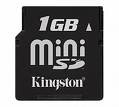
Buy one, they look like this.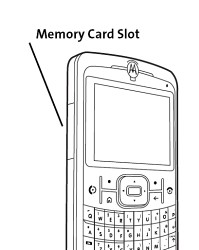 Then install in the slot on the left hand side of the phone.
How to Increase the Headset Volume on your Motorola Q
When I was attempting to set up my Q as an MP3 player, I ran into the problem of the headset volume being just too low.
After searching, I found the way to handle this by means of a registry hack.
Navigate through the path as follows:
HKEY_LOCAL_MACHINE
Software
Motorola
BPCTRLR
WaveDev
BaseGains
Press the values button on the bottom left of the screen and locate StereoHdstPathGain Value, select it and raise value to 10 or higher (10 seems acceptable). Press Done when complete.
How to Edit the Registry of your Motorola Q
For the purpose of making Hacks to your Q, editing the registry will be a necessary task.
A hack is a tweak of a technical system to alter the manner in which it operates usually outside of manufacturers settings.
The registry is the part of the operating system where values and settings are recorded for an application to refer to for various actions. Example: If an audio application had the volume set to 4 and it was designed to "remember" the volume set, it might record that in the registry so when the application needed to find the last recorded volume for that application, it could find it there in a specified location.
The first thing needed will be an application to edit the registry.I chose PHM registry editor and installed it.
If you are new to editing a registry, take care to follow instructions from trusted sources exactly as incorrect editing can cause issues where reinstalls may be necessary depending on the application affected. Having said that, it is not very complicated as it resembles editing a setting in any application or webpage. On the Menu, you will find an option to backup the registry and I suggest you do this before making any edits.
To edit a setting, follow the path indicated to the specific setting and make the alteration. It is very similar to using a common file explorer.
Subscribe to:
Posts (Atom)
